On-device AI
On-device AI photo search for iPhone.
Describe what you are looking for. Local AI searches the iPhone library on-device and works offline for photos already available there. Optional Google Photos is separate in enabled builds.
Free forever No ads, no subscription Core cleanup runs on-device

Why searching beats scrolling
Search is the only feature that gets faster as your library gets bigger. Scrolling gets slower, albums need maintenance, and sorting by year only helps if you remember when something happened. Typing “dogs on a beach” and getting the photos back takes a second, at any library size.
The catch is where that search runs. Cloud photo services answer questions like this by holding your library on their servers, which is why they need an account and a connection. TidyByte does it locally: the content labels come from Apple’s Vision framework on your device, and the interpretation of your sentence happens on the device too.
The practical result is local-library search that works offline, requires no TidyByte account, and sends no photos or search text to a TidyByte server. Google Photos is a separate optional source in builds where it is enabled.
How on-device AI search works
-
1. Photos are labelled locally
During a scan, each photo is classified with Apple Vision into content labels: dog, beach, food, receipt, document, and so on. This happens on your iPhone and produces the vocabulary the search works against.
-
2. Your words become a query
On iPhones where Apple’s on-device language model is available, that model reads your description and turns it into a structured query over those labels. Where it is not available, TidyByte matches your keywords against the same labels directly, and says which method it used.
-
3. Matching happens in the app
The query is validated against the labels that actually exist in your scan, then matched in app code. The model never decides which photo to show you; it only translates a sentence into a search, which keeps results predictable and explainable.
What it can and cannot find
Honest limits are more useful than a demo that only works in a keynote. TidyByte’s AI search covers visible content, and says so in the search field.
Works well for
Subjects and scenes: dogs, beaches, food, sunsets, cars, receipts, screenshots of documents, screens, and combinations like “dog on a beach” or “food, not screenshots”.
Not indexed here
Dates, place names, people’s names and text inside images. For those, the Photos app’s own search is the better tool, and TidyByte tells you that instead of returning nothing.
Search results behave like any other list in the app: select what you no longer need, deselect anything worth keeping, and delete the rest with one confirmation and a 30-day undo.
Why this is a privacy feature, not just a search box
Searching your photo library by description is the most personal query you can make of your own device. Doing it in the cloud means building a profile of what you photograph, when, and what you look for — which is exactly what on-device processing avoids.
Local-library search itself does not make network requests or send photo data to a TidyByte server. In builds with Google Photos enabled, connecting that separate source calls Google directly. You can verify the local search by turning on airplane mode, or review the MIT-licensed source on GitHub.
That is the point of building search this way: local-library search runs on-device, while selected Google Photos previews are fetched from Google and scanned locally in enabled builds.
How it compares
| TidyByte | Google Photos | Apple Photos search | |
|---|---|---|---|
| Where the AI runs | On your iPhone | Google's servers | On-device |
| Requires an account | No account required for local search | Google account | iCloud account |
| Works offline | Yes, for local-library search | No | Partly |
| What it can search | Visible content labels | Content, places, people, text | Content, places, people, text |
| Falls back gracefully | Keyword label matching when local AI is unavailable | Cloud only | Varies |
| Cost | Free | Free with account and uploads | Free |
-
Free forever
No subscription, no in-app purchases, no ads.
-
Private by design
No TidyByte account, backend, analytics SDK, ads, or tracking.
-
On-device only
iPhone-library cleanup runs locally; optional Google Photos connects directly to Google.
-
Open source
MIT licensed on GitHub, so every claim is auditable.
Frequently asked questions
What is on-device AI photo search?
It means the language understanding happens on your iPhone rather than on a server. You type a description in ordinary words, the on-device model turns it into content labels, and the app matches those labels against photos it has already classified locally. This local-library search sends no photos or search text to TidyByte and works offline for downloaded photos.
Which photos can AI search find?
Searches match visible content: subjects like dogs, beaches, food, receipts or screens. Dates, place names, people's names and text inside images are not indexed by this feature, and the app says so in the search field rather than pretending otherwise. For those, the Photos app remains the better tool.
Does the AI send my photos to a server?
The local AI search does not send your iPhone photos or search text to a server. On iPhones where Apple's on-device language model is available, that model interprets your search text locally; otherwise, the app matches your words against local labels. The optional Google Photos source, when enabled, connects directly to Google for the items you select.
Which iPhones support the local language model?
It depends on Apple Intelligence availability for your device, language and region. TidyByte does not require it: when the model is unavailable, the app falls back to keyword matching against its on-device labels, and tells you which method was used in the search result.
Can I delete photos directly from a search result?
Yes. Search results behave like any other photo list in the app: select what you no longer need, confirm once, and the files move to Recently Deleted for 30 days. That makes a content search a practical way to clear a specific kind of photo, like every screenshot of a receipt.
Every cleanup tool, in one free app
-
Photo organizer
Sort thirty thousand photos without renaming a single file: browse by category, year or album, and make keep-or-delete decisions in one pass.
-
Photo cleaner
One free app that clears every kind of photo clutter — duplicates, similar shots, screenshots, screen recordings, chat media, blur, bursts, Live Photos and oversized videos. iPhone-library cleanup runs on-device.
-
Screenshot cleaner
Screenshots pile up faster than any other kind of photo. Find them all, review them in one list, clear them in a single pass.
-
Storage cleaner
See exactly what is filling your iPhone, then clear it: duplicates, oversized videos, screenshots, blurry shots and Live Photos. Free, with iPhone-library cleanup on-device.
-
Duplicate cleaner
Exact copies matched byte-for-byte, plus near-identical shots grouped by Apple's Vision framework. Review every group, keep the best, delete the rest.
-
Similar photos
Twenty shots of the same moment, one worth keeping. Group them, score them, keep the best — without a subscription.
-
Blurry photos
Sharpness, darkness and overexposure scored on-device, with a sensitivity control you can tune. Keep the memories, bin the misses.
-
Large files
The few files that eat most of your storage are videos. Sort them by size, decide file by file, then delete or compress.
-
Burst photos
A ten-second burst is thirty photos, and twenty-nine of them are waste. Group them, keep the best frame, clear the rest.
-
Live Photo converter
Every Live Photo carries a short video you rarely watch. Keep the still, lose the motion, keep the metadata.
-
Video compression
4K clips are what fill iPhones. Re-encode them at a preset you choose, check the real file size, then decide what to do with the original.
-
Image compression
Re-encode the photos that are larger than they need to be, choose the quality, and see exactly how many megabytes each one returned.
-
Free, no subscription
No paywall on the delete button. No weekly plan. No ads between photos. Free because there is no TidyByte backend, ad system, or subscription to fund.
-
Screen recordings
Screen recordings are the largest files nobody remembers making. Find every one, see its size, and clear them in a single pass.
-
Chat media
Every chat app quietly saves photos and videos into your library. Review them by album and clear the ones you never meant to keep.

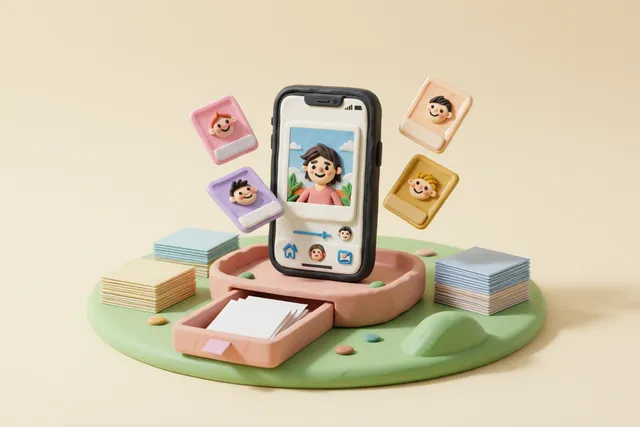
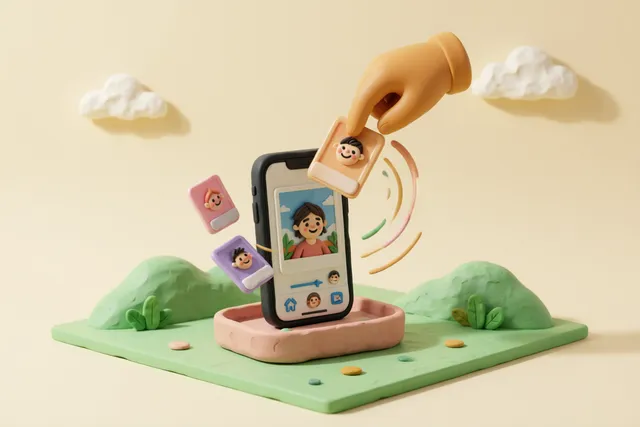
Search your library by description.
Download TidyByte Free and let local AI find the photos you have been scrolling past for years.